LITTLE PAWS, LOVELY DAYS

One kibble at a time,
a pet clock

Dogs and cats push a minute hand made of kibble, one piece at a time. At meal time they wait by the bowl; at walk time they wait by the door. The same friend lives with you on your phone and on your desktop.

Download on the App Store Open the app
79 charactersEight kibble minutesMeal and walk reminders Up to four pushingStored on your deviceDesign filed 30-2026-0034331
Design application 30-2026-0034331

The screen design of this clock, in which kibble becomes the minute hand and a pet pushes it, was filed with the Korean Intellectual Property Office on 8 September 2026. Copying and imitation are not permitted.


What PawMinute does

It spends less time showing the hour than keeping track of what you did with your pet today.

01A minute hand pushed one piece at a time

The minute hand is eight pieces of kibble. Every minute your friend walks over and pushes one.

0279 characters

Dog and cat breeds, drawn friends and others. You start with either the Corgi or the Bengal.

03Four pushing together

Up to four friends can push together, and each one can have a name.

04It knows meal time

At the time you set, your friend walks to the bowl and waits. Once you have fed them, press Fed them.

05Walk timer

Press start before you go out and finish when you come back, and it stays in today’s record.

06Cats play instead

If your main pet is a cat, walks become play, and the records count play too.

07Petting

Rub your hand over the character and hearts float up while it purrs.

08Sleeping at night

From 10 PM to 7 AM they curl up at the bottom of the dial and sleep.

09Where the clock lives

Rug, grass, wood, minimal, night. Five dials to choose from.

10Dark screen

Switch between light and dark, so it does not dazzle at night.

11Your pet’s details

Keep the name, birthday and photo. On the birthday there is a party hat.

12Weekly record

See at a glance how many days of meals and walks you kept this week.

13Desktop clock

The same friend floats on your Windows desktop keeping time. Outside the circle the mouse passes through.

14Resizing

Resize the desktop clock by dragging its handle or scrolling the wheel.

15Do not disturb

When you watch video full screen, the clock dims and steps back on its own.

16Break reminders

Water and stretch reminders at the interval you choose. It looks after you as well as your pet.

17Add to home screen

Add it to your phone’s home screen and it opens like an app under a paw icon.

18Stored on your device

There is no account. Promises and records stay on this device and are sent nowhere.
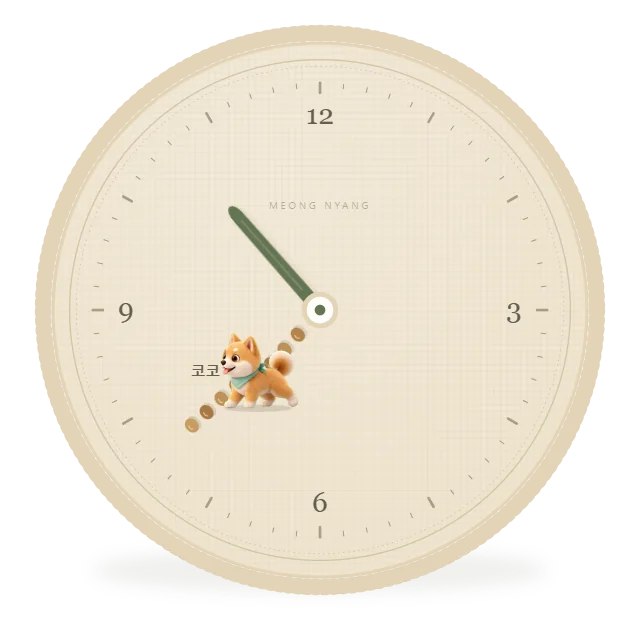

It lives on your desktop too

We built a separate clock for Windows. It floats on the desktop with no window frame, and outside the circle the mouse passes through, so your work is not interrupted.

  • DragPut it where you like and it remembers the spot.
  • SizeHover for the handle, then drag it or scroll.
  • Double-clickPromises, styling and records open. It is the same screen as the phone app.
  • RemindersWindows notifications at meal and walk times.
~/desktop
PawMinute floating on the desktop Windows 10 · 11

Pricing

Starting is free. You can earn friends with the time you spend with your pet, or buy them.

START
Free

Start with either the Corgi or the Bengal. The clock, the promises and the records are all yours.

Start now
ONE
US$4.99 / one friend

Pick one friend you like and welcome them. Once welcomed, they stay.

ALL
US$49.99 / everything

Unlocks all 79. Friends added later are included.

CUSTOM
US$99 / your pet

Send a photo of your pet and we will draw them as a character and put them in.

Earning instead of buying 30 minutes a day or more of walking or play, 7 days earns one ticket for a new friend. Missing a day now and then is fine.

Desktop clock

Windows 10 · 11 (64-bit) · about 110MB

Download coming soon

Installing

  1. Double-click the file you downloaded.
  2. When the blue window appears, click More info, then Run. That window appears because the program is new to Windows. Click the small More info link to reveal the Run button.
  3. Leave the install location as it is and click Install. No administrator rights needed.
  4. The clock appears at the bottom right of the screen. A paw icon also appears at the right end of the taskbar.

How to use it

  1. Drag to move it. The position is remembered.
  2. Hover to reveal the handle, then drag it or scroll to resize.
  3. Rub the character and hearts float up.
  4. Double-click to open promises, styling and records.
  5. The clock steps back on its own when you watch full screen.

Add to your home screen

iPhone and iPad (Safari)

  1. At the bottom centre, Share button(the up arrow)
  2. scroll down and choose Add to home screen
  3. then at the top right, Add

Android (Chrome)

  1. then at the top right, ⋮
  2. Add to home screen or Install app
  3. Installing

PC (Chrome and Edge)

  1. At the right end of the address bar, the install icon
  2. If it is missing, ⋮ → Apps → Install this site as an app

Payment complete